BadgerServer Book Setup
To get access to BadgerServer books & allow kindle syncing:
- Send me your "Send-to-Kindle" email address.
- It will look similar to your regular email address, but end in "@kindle". Sometimes there are random numbers/letters added into it as well
- This can be found through Amazon (screenshots below) or on your Kindle (varries by model).
- Allow [email protected] to send emails to your kindle.
- If you do not do this, you will still recieve books, but will need to "accept" them everytime via an email Amazon will send you
- Send me your actual email address. This is used for account setup. I will send you your username/password.
- Login at https://books.badgerserver.net/
- Change your password (Red circle in picture)
- Search for a book, and use the paper airplane button to email to yourself (green circle).
- If you cannot find your book, you will need to reach out to me to get it
- Make sure your kindle is connected to wifi and sync. You should see your book appear shortly.
Amazon Screenshots to find your kindle email & add an 'approved sender' (Steps 1 and 2)
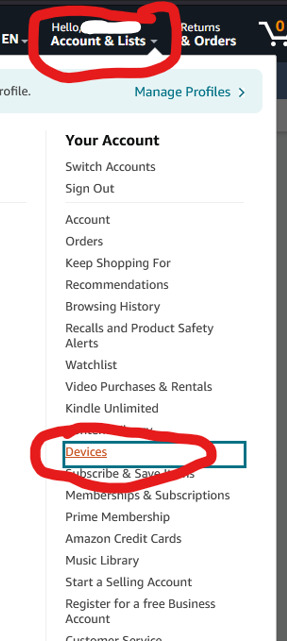
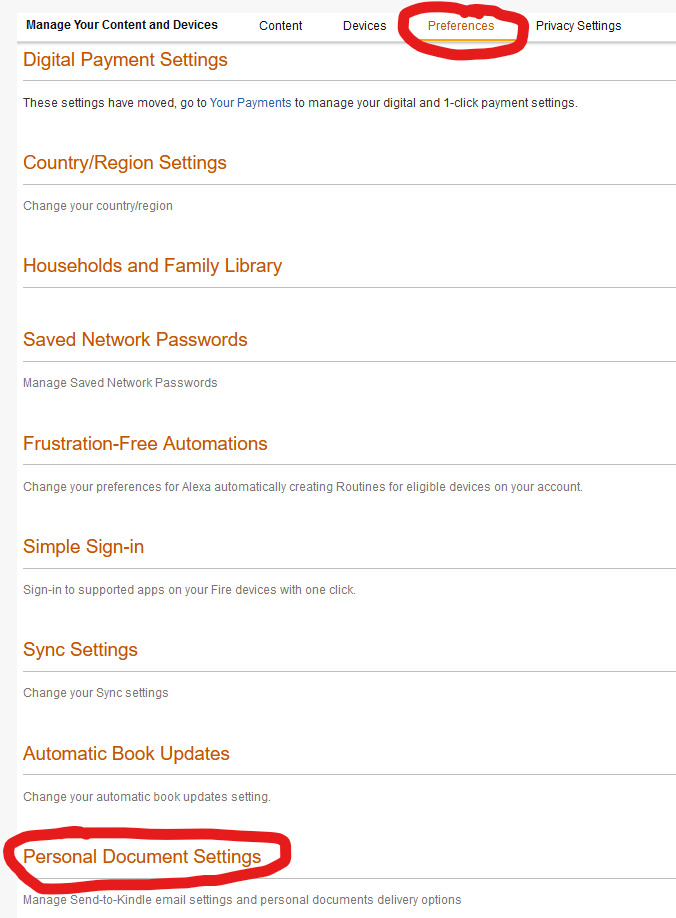
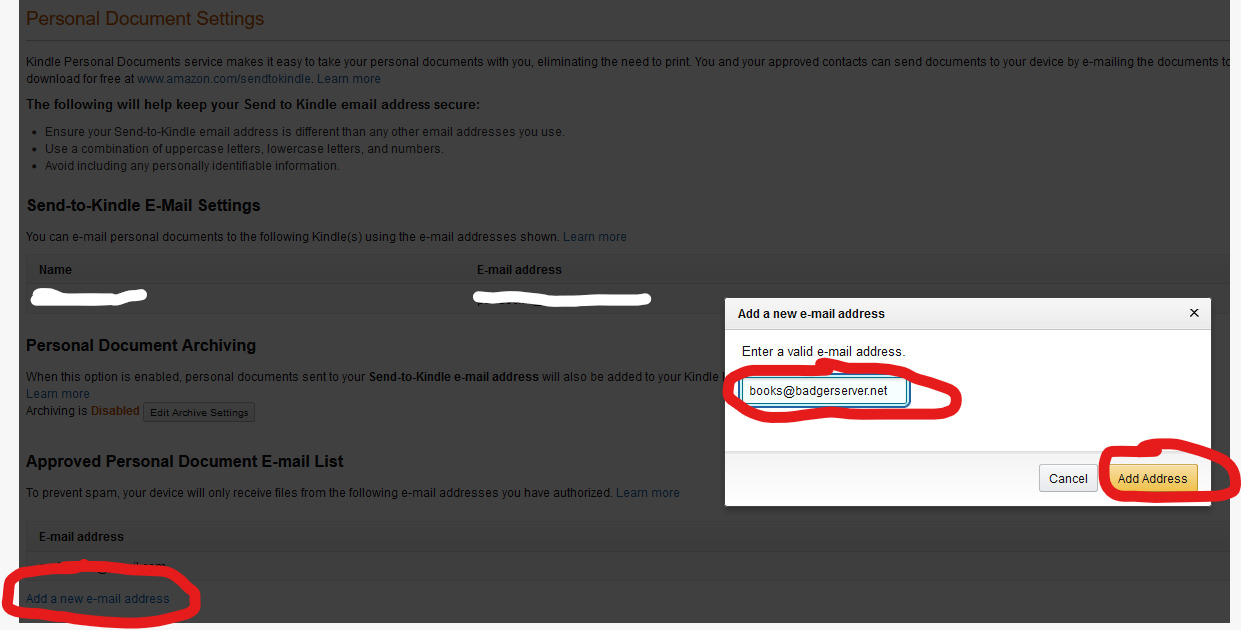
Your kindle email is under "Send-toKindle E-Mail Settings (whited out). Add [email protected] to the "Approved Personal Document E-mail List"
Books Interface (Step 4)
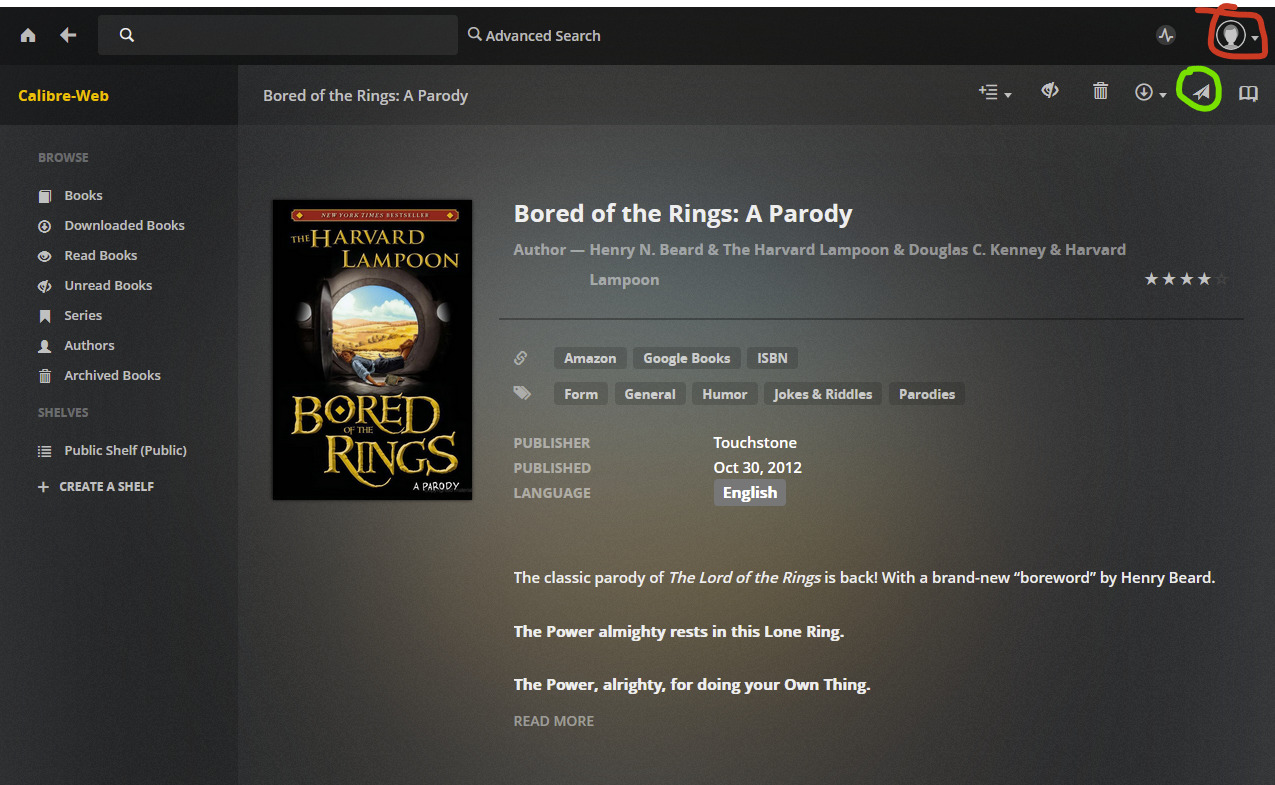
Change your password (red circle). Email to your Kindle (green circle)

[email protected]